| Home Prev |  Clavister NetEye Cloud Getting Started Guide Clavister NetEye Cloud Getting Started Guide
|
Next |
|---|
A Summary of Setup Steps
This guide is designed to provide the minimum information necessary to begin using the NetEye Cloud service. The following list is a summary of the setup steps:Create a MyClavister account on the Clavister website if one does not already exist.
Purchase a license for the NetEye service.
An email will be sent by Clavister with the required registration codes.
Log into the MyClavister account and register the license details using the registration codes in the email.
Within 72 hours a second email from Clavister will confirm that the service is ready for use.
Access the MyClavister account again and the connection details will be available for configuring an IPsec tunnel to NetEye.
Locally configure cOS Core firewalls or any other devices to access the Internet via the NetEye Cloud service by configuring a suitable IPsec tunnel.
NetEye SSL Inspection Requires a CA Root Certificate
For NetEye SSL inspection to function, NetEye must generate host certificates to send back to clients that are signed by a CA root certificate. As described later in this section, the public and private key files of such a root certificate must be uploaded into the MyClavister system (and optionally a certificate chain file).Typically, the root certificate is self-generated. If that is the case then it should be noted that the public key of this root certificate needs to be installed on any connecting client so the host certificates sent back by NetEye can be authenticated.
The interactions with the MyClavister system in the summary setup list above are next described in detail. Later chapters will describe configuring cOS Core and non-cOS Core devices for NetEye processing.
A. Registering the NetEye License
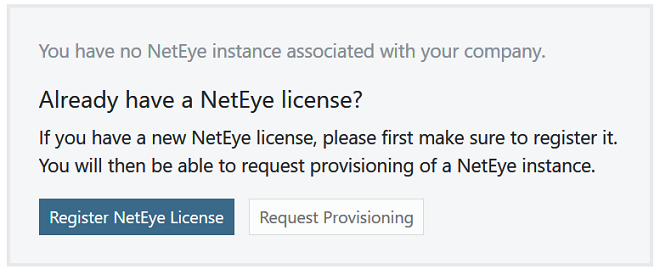
After purchasing the NetEye service, an email will be sent by Clavister that contains codes that must be entered into the MyClavister system to initiate NetEye cloud instance setup. After logging into MyClavister, choose the NetEye option from the left hand navigation menu.The dialog below will appear and the Register NetEye License option should be pressed.
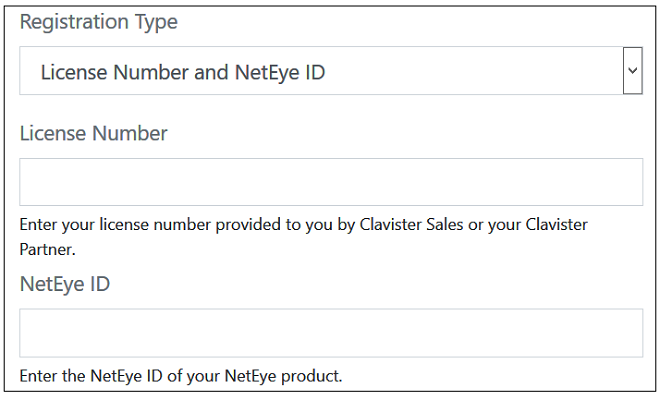
The license registration dialog for NetEye will now appear (shown below). This dialog should be filled in with the license number and NetEye ID found in the PDF attached to the email received following purchase of the NetEye service.
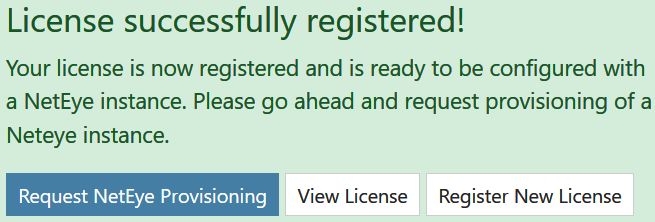
After pressing the Register License button, the license dialog will close and a message indicating successful registration is presented, as shown next.
B. Requesting Provisioning
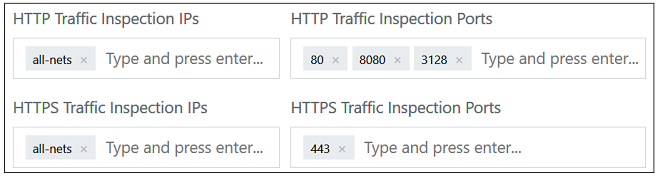
Following registration, the Request Provisioning button should be pressed to begin the process of creating a new NetEye cloud instance.This will open up a dialog for entering the required parameters for the NetEye Cloud instance. The administrator can change the default settings if required. For example, the screenshot below shows the default IPs and port numbers for traffic that NetEye will scan for threats. These can be changed according to the customer's requirements (only IPv4 is supported).
For SSL inspection to work, the public and private key of a CA certificate must be uploaded. The CA certificate will usually be self-generated and will be used by NetEye to create host certificates that are sent back to clients. The CA bundle is an optional chain between the CA root and the host.
Note that the clients themselves must have the public key of the CA certificate installed so they can authenticate the host certificates that they receive from NetEye.
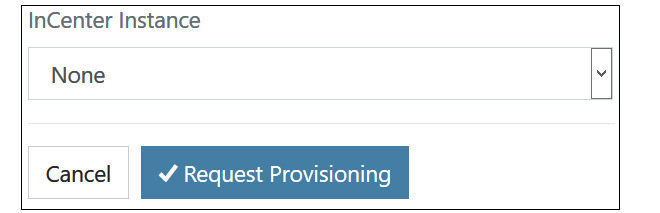
The final part of the NetEye Cloud parameters is associating the instance with an InCenter cloud instance. An existing instance, if there is one, can be selected from a drop-down box, or the provisioning of a new InCenter Cloud instance can be requested.
After requesting provisioning, Clavister will create a new NetEye cloud instance. This process can take up to 72 hours. A pending provision request will be indicated by a yellow Pending label next to the license entry in the license list.
An email will be received when provisioning is complete and the cloud instance is ready for connection. This will be indicated in MyClavister by the green Provisioned label appearing next to the license in the NetEye license list.
C. The NetEye FQDN Becomes Available After Provisioning
The FQDN needed for NetEye connection can be found by clicking on the NetEye Instance link (NE1001 in the previous screenshot). This will present the NetEye configuration parameters along with the FQDN value.This is the FQDN that must be used as the remote endpoint for the IPsec tunnel that is configured to send traffic to NetEye. Configuration of cOS Core for NetEye connection is described in Chapter 3, cOS Core Setup.
D. Changing the NetEye Configuration
Some details of the NetEye instance configuration can be changed at any time by the customer using the MyClavister system. For example, the port numbers of the traffic processed may be changed. However, it should be noted that there may be a delay between the change being made in the MyClavister system and the change being made in the NetEye instance.